


Video compressor - Reduce size
4.1692.00 Reviews
App Specs
- Version
- v1.2.32
- Updated On
- License
- Free
- Downloads
- 1,000,000+
- Developer
- BDH Apps
- Categories
- Video Players & Editors
- Platform
- Android, iOS
Screenshots
 Analysis by AppCompare
I reach for Video Compressor - Reduce Size when a video is too large to keep, send, or upload comfortably and I would rather shrink it than delete it. That is a narrow, practical job, and the app’s appeal is that it focuses on making that task approachable. It is a video utility from BDH Apps in the video players and editors category, aimed at people who want to reduce a file without learning a full editing program.
The most useful way to approach compression is to decide what the video is for before changing anything. A clip meant for a quick message usually does not need the same detail as one you plan to keep as a family memory or show on a large screen. I find that setting a realistic goal—smaller and still watchable, rather than the smallest possible file—helps avoid disappointment. Compression always involves a trade-off: less data can mean softer detail or more visible artifacts, especially in busy scenes.
Where people can get stuck
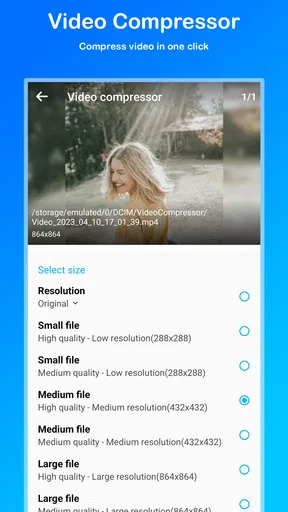
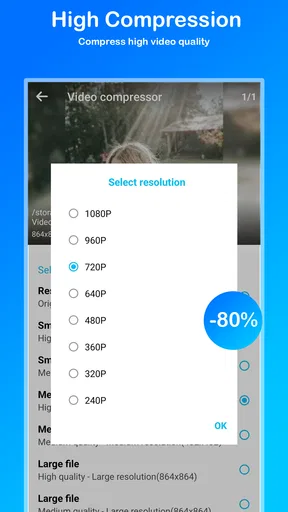
The confusing part of a compressor is often not the button itself but the choice of settings. Resolution and bit rate affect the result differently, and lowering both aggressively can make motion look muddy. A clip of a still room may tolerate a smaller output better than a fast-moving sports moment, a child running around, or leaves moving in the wind. I would start with a modest adjustment, preview the output, and only go smaller if it still looks acceptable.
It also helps to remember that a smaller video is not automatically a better video for every purpose. If you are trying to send a clip through a service with a file-size limit, the target is to get below that limit while keeping enough clarity to see what matters. If the goal is simply to make room on your phone, keeping a copy of the original somewhere safe before compressing is the more cautious workflow. That way, you can return to the full-quality version if the smaller one is not good enough.
Setup checks before compressing
Before starting, I would check that the correct source video is selected and that the phone has enough free space for the output. A compression process has to create a new file, so a nearly full device may leave little room for it to finish or save. It is sensible to make room first rather than assume compression can immediately solve a shortage of storage.
For an important clip, I would also check its duration and play the original briefly before processing. That simple check confirms that I have picked the right recording and that the source itself plays normally. If the original already stutters or has a problem, compression is unlikely to repair it. Keep the phone available while the task runs, and avoid treating a progress indicator as proof that a saved copy is ready until you can find and play the result.
A practical workflow for recovering a result
If the output is too blurry, I would not keep repeating the same aggressive settings. I would go back to the original, choose a less demanding reduction, and compare the new result with the source. Looking at the same scene in both files is more useful than judging from memory, especially when the clip contains faces, text, or small details.
Worth Reading Before You Choose

EA SPORTS FC Mobile 26 Is a Bigger Football Game, but It Takes Time

Flipboard Shows What News Apps Must Do Beyond the Feed

Switching to Android Auto Means Rethinking Your Driving Routine

Google Calendar Makes a Crowded Week Easier to Manage

Ludo King Makes the Most of the Minutes Between Plans

Baby Panda World Brings Quick Play to Modern Phones, but Its Game Library Feels Busy
If a result does not appear where I expect, I would first check the app’s available saved-video area and the phone’s usual media locations, then give the device a moment to refresh its library. I would also verify that the export completed rather than starting another compression immediately. Making several copies with similar names can create its own confusion, so a deliberate naming or cleanup habit is useful when testing different settings.
When the app may not be the cause
Some problems are in the source or the sharing destination rather than the compressor. A damaged original can remain damaged after processing, and a messaging or social platform may compress a video again after you upload it. That second reduction can make a clip look worse even if the saved copy on your phone is fine. When quality matters, compare the local output with the version that reached the other person before changing your compression settings.
Likewise, a file that is smaller but still will not send may be encountering a limit imposed by the service, connection, or upload process. I would check the destination’s own requirements and try a stable connection before assuming the app failed. If the target is a particular size, leave a little room below the stated ceiling; being just under it can still be risky if the service handles files differently.
First Impressions and Everyday Use
The moment you launch Video Compressor - Reduce Size, you're greeted with a clean and straightforward interface. No clutter, no unnecessary frills—just what you need to get the job done. It feels like the app designers knew exactly what we were looking for: simplicity and efficiency.
As someone who appreciates a good user interface, it was refreshing to see how intuitive it was to navigate. I didn’t have to search for a tutorial or anything. It’s like meeting someone who just gets you, right off the bat.
Key Features
Alright, let’s talk about the features that make this app a must-have. The primary function, as you might have guessed, is to compress videos without sacrificing too much quality. And boy, does it deliver! Here’s a quick breakdown:
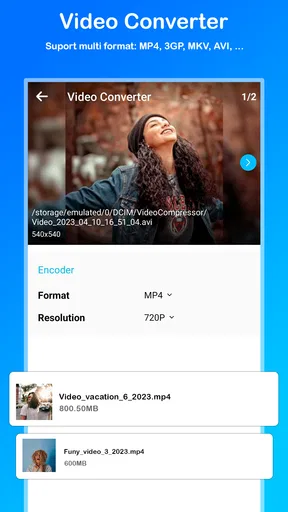
- Multiple Formats: Whether it's MP4, AVI, or MOV, this app handles them all. It's like having a multilingual friend who can translate anything for you.
- Batch Compression: Got a bunch of videos? No worries. Compress them all at once. It’s like having a magic wand for your storage issues.
- Custom Settings: Control the resolution and bit rate. Want to keep that high def shine or need a quick compress for sharing? The choice is yours.
In addition to these, the app allows you to preview the video before saving. Trust me, this feature is a game-changer. Imagine compressing a video only to find out it looks like it was shot through a potato—no thanks!
Using the App
Getting started is as easy as pie. Select the video you want to compress, choose your settings, and hit that big, friendly ‘Compress’ button. Watching the progress bar move is oddly satisfying, like watching a kettle boil, only quicker.
Once it's done, you can save the compressed video in your desired location or share it directly from the app. It’s designed for people who are always on the go and need quick solutions.
A good everyday example is recording a short event, then discovering that the original is too large to share easily. I would keep the original untouched, make a reduced copy for the intended recipient, preview that copy, and send it only after checking both playback and size. For several clips from the same outing, batch compression can save repetitive effort, but I would still inspect the most important output rather than assume every source will look equally good at one setting.
That distinction matters because a batch is convenient, not necessarily a quality shortcut. Videos vary in length, movement, lighting, and detail, so a setting that works for a quiet indoor clip may not suit a night recording or a fast pan. When the clips have different purposes, processing them individually gives more control. I would use a batch for low-stakes material where consistency and speed matter more than fine-tuning each file.
Performance
I tested it on a range of videos—from a random cat video I took last week to a full-length movie. The app handled both with ease. The compression time was reasonable, and the quality post-compression was impressive. I didn’t notice any significant loss, and that’s saying something for an app that promises to reduce file size substantially.
On the technical side, it didn’t overheat my phone or drain the battery, which is a massive bonus. We’ve all used those apps that make your phone feel like it’s about to launch into space, but Video Compressor - Reduce Size isn’t one of them.
For a phone with an older operating system, compatibility is worth checking before planning a workflow: the app supports Android 5.1 and later. Its current release is v1.2.29, and the app is rated for Everyone. Those details make it relevant to a broad range of Android users, although I would still keep the operating system and app updated when possible because current software can avoid some avoidable compatibility friction.
Compared with a full video editor, this app is best understood as a focused utility rather than a place to trim, add titles, arrange scenes, and prepare a polished project. If I only need a smaller file, a dedicated compressor is more direct than opening an editor and navigating tools I do not need. If I need to cut out a long pause or combine clips before sending, an editor may be the better first stop; compressing a video does not replace those editing decisions.
There is also a trade-off against relying on a messaging app to shrink a clip automatically. Automatic compression can be convenient, but it may give you little say over the result and may happen again at the receiving service. Preparing a smaller copy yourself gives you a chance to preview it and keep the original separate. I would choose that route for a clip where framing, faces, or readable details matter, while leaving casual, disposable footage to a quick automatic share.
Who will get the most from it
I think this is a sensible fit for people who regularly record on their phones and run into practical limits: not enough room for another clip, a file that is awkward to send, or a video that needs a smaller copy for everyday sharing. It also suits someone who wants to choose a level of reduction without first learning a complicated editing suite. The simple flow is an advantage when the task is occasional and clearly defined.
I would skip it if my main goal were professional post-production, detailed color work, careful trimming, or preserving every bit of quality for a master copy. A compressor cannot make a low-quality source sharp, and shrinking a valuable original is not a substitute for backing it up. For archival footage, I would keep the original and treat any compressed version as a convenient duplicate, not a replacement.
The app is free to download, while optional in-app purchases range from $3.99 to $35.99 per item. I would try the basic workflow before paying for anything and decide whether the features I actually use justify a purchase. Its audience is substantial, with more than a million installs, an average rating of 4.2 from around 43,000 ratings, and 664 written reviews. Those figures offer useful context, but they do not guarantee that a particular phone, file, or compression choice will produce the result you want.
Making a confident choice
One question I would ask before installing any compressor is whether I need to reduce a file once in a while or manage a regular video workflow. For occasional sharing, this app’s focused approach is appealing. If I need a repeatable editing process with several creative steps, I would compare it with a video editor instead of expecting a compressor to cover both jobs. The right choice depends less on the number of tools and more on whether the job is simply “make this file smaller.”
Another practical question is whether compression will preserve the details I care about. There is no setting that can promise the same result for every scene, so the preview is important rather than decorative. I would pay particular attention to faces, signs, small text, and quick motion, then compare the output at normal viewing size. If it fails that check, I would use a gentler setting or share the original by another route.
Final Thoughts
In a world where digital space is a precious commodity, Video Compressor - Reduce Size is like finding an extra room in your tiny apartment. It’s efficient, user-friendly, and doesn’t ask for much in return. The app is free to download, with some in-app purchases if you’re looking for additional features.
Overall, if you’re looking to declutter your phone without letting go of your cherished videos, this app is definitely worth a shot. It’s like carrying a Swiss Army knife for your video needs, always ready to help out when you need it most.
Ready to give it a whirl? Check it out on the App Store or Google Play, and say goodbye to storage woes. Happy compressing!
My practical recommendation is to keep the original, reduce a copy for a specific purpose, and judge the result before sharing or deleting anything. That small habit makes the app more useful and protects the videos you care about. If you want a straightforward way to make phone videos easier to store or send, BDH Apps’ compressor is worth considering; if you need a complete editing workspace or a guaranteed quality-preserving archive, I would choose a different tool for that job.
Pros
- Efficiently reduces video file size.
- Supports various video formats.
- Maintains video quality after compression.
- Easy-to-use interface for beginners.
- Fast processing speed.
Cons
- Limited editing features available.
- May not support 4K videos.
- Contains ads in the free version.
- Requires internet for some features.
- No batch processing option.
FAQs for Video compressor - Reduce size
What platforms does Video Compressor - Reduce Size support?
Video Compressor - Reduce Size is available for both Android and iOS devices. This ensures that users on both major mobile platforms can take advantage of its features to compress video files efficiently, saving storage space and making it easier to share large files without compromising on quality.
How does the app affect video quality after compression?
The app uses advanced algorithms to compress videos while maintaining high quality. Users can choose different levels of compression, balancing between file size and video quality. Although some minimal quality loss can occur, the app strives to retain the original quality as much as possible.
Is there a limit to the size of videos that can be compressed?
Video Compressor - Reduce Size handles large files efficiently, but there might be limitations based on the device's processing power and available storage. It's advisable to ensure there is sufficient storage space and processing capacity for handling large files during compression to avoid any interruptions.
Does the app support batch video compression?
Yes, Video Compressor - Reduce Size supports batch processing, allowing users to compress multiple videos simultaneously. This feature is particularly useful for users who need to compress a large number of videos quickly, enhancing productivity and saving time.
Are there any in-app purchases or subscriptions required?
The app offers both free and premium versions. While the free version provides basic compression features, the premium version unlocks advanced features like higher compression rates, faster processing, and no ads. Subscriptions are available for users needing these additional capabilities.


